Stay in touch
Subscribe to our mailing list for all the latest news and developments about Natural Capital Suite.

Truii acknowledges the Traditional Owners of Country throughout Australia. We pay our respects to Elders past, present and emerging.


Natural Capital Impact facilitates the creation of data-driven interactive impact reports. The reports allow for reporting of anything that matters to your organisation across geographic areas.
The core elements of an impact report are locations and indicators, both fully customisable, and the grading scheme that turns your data into published results.
Locations can be any area represented by a polygon and can include up to four levels of hierarchy to allow reporting across a whole region and then sub-regions. For example, you could report across a natural resource management region and then drill down to catchments, sub-catchments, and reaches for local reporting.
Indicators can be anything that is important to your organisation that you want to assess. This might be environmental conditions like water quality, which can then be broken down into sub-indicators like nutrients, sediments, or visibility. It could be the things you value like flora and fauna. Or, it could be an action you are performing, like revegetation or stormwater harvesting. Anything you want to assess can be developed as an indicator and customised with flexible reporting options.
There are two primary result indicator types that are graded using your grading scheme:
The other indicators are contextual and support the primary indicators, appearing within an indicator’s pages:
An indicator’s type is fixed when you create it, so it is worth deciding early whether something is a result in its own right or context that explains another result.
All indicators are driven by data inputs. If something varies by location and comes from your data, it is an indicator. If it is words you write, it belongs in a text panel or a widget.
Grading is what makes a report card a report card. An indicator’s data becomes a grade, and that grade is what most of your audience reads. You decide what the grades are and what each one means. The grading scheme you choose can change the story your report card is communicating.
A report card uses one of three grading schemes:
For discrete categories, you set the thresholds that decide which grade a result falls into. This is an important decision in setting up a report card, because it defines what your organisation is calling good. Thresholds can be set as a default for the entire report card, or they can be defined for each indicator, so water quality and biodiversity can be graded on entirely different bases while still presenting to a reader as one consistent scale.
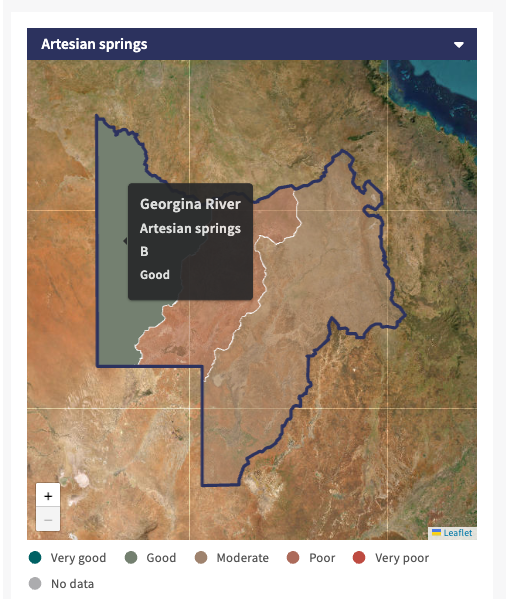
Locations, with two levels of hierarchy, displayed on the interactive map.

The highest level of indicator reporting – the ‘all indicators’ view, using a ‘discrete categories’ grading scheme.

The Reef Water Quality Report Card 2023-25 uses the ‘change’ grading scheme.

Example of the options for a grading scheme based on discrete categories with thresholds.
Data for your report card should generally be imported in a flat file format, like .csv (for indicators) or .geojson (for locations). Indicator data can be edited in situ via the data upload table, for convenience.
Results are not calculated for you. Whatever you enter for a location and indicator is what appears there, so a region-wide result is a figure you have supplied rather than a roll-up of the sub-regions beneath it. Nothing in your report card is derived by a method you did not choose, which matters when you are publishing under your own name. It also means you need data for every level you intend to report on.
Each indicator carries a data confidence rating, on a scale of one to five, which you set. It appears beside the result, so a reader sees not only the grade but how much weight to put on it. A result drawn from twenty years of continuous monitoring and one drawn from a single season can then sit side by side in the same report card without misleading anyone.
Every indicator is reported in three layers: its primary result, the data behind that result, and the explanation around it. A general reader often needs only the first. A technical reader can work down through all three without leaving the page, which is what allows one report to serve both audiences.
A page is built from panels: the primary result, secondary results, context data, text, widgets, alerts and notes. You choose which panels appear for each indicator, and you choose it separately for each level of your location hierarchy.
A region-wide page can carry a long interpretation, photographs and links to your programs, while the same indicator at sub-region level carries only the result and the data behind it. This is what keeps a report card readable as it grows. A card with four levels and hundreds of locations does not have to repeat the same supporting content on every one of them.
Each indicator has a primary result, shown as a graded tile or a dial according to the grading system you chose. It is the first thing a visitor reads, and for much of your audience it is the only thing they need. Everything else on the page exists to support it.
Not everything you report needs a grade. A context indicator presents supporting data that helps explain a result without being scored against a threshold, such as rainfall, flow, or the presence of pest animals. It sits alongside the primary results for an indicator, so a reader who wants to know why a grade moved can see the conditions behind it. You can select from a range of customisable charts to visualise this data.
An alert indicator displays a message when your data meets a condition you set. This lets you put a warning or a note in front of a reader at the moment it applies, rather than relying on them to interpret the data themselves.
Text panels let you explain what a result means and what is being done about it, in your own words. Each location can carry its own description, and each data panel can carry supporting information of its own, which might describe the underlying data and its collection. It can be reached from an information toggle icon on that panel. The detail a technical reader wants is therefore on the same page as the grade, rather than in a separate document.
Three widgets add supporting material to any page:
Used well, these carry the story of what your organisation has done, not only the condition it is reporting on.
Once built, widgets can be reused across multiple pages. You create a widget in the report card’s library and attach it wherever it belongs, and the library shows how many pages each one appears on. If you want to update the caption on an image you change it once in the library and it will update everywhere that image is used.
Whether a panel is for a primary result or context data, it can be switched from its chart to the underlying data table using a toggle button. This is not something you set up. It is how every report card behaves, so a reader who wants the numbers rather than the picture is always one click from them.
It is an accessibility feature as much as a transparency one. A chart is a visual object, and colour carries meaning throughout a report card, so the data table presents the same information in a form that works with a screen reader and for readers who cannot rely on the colour coding.
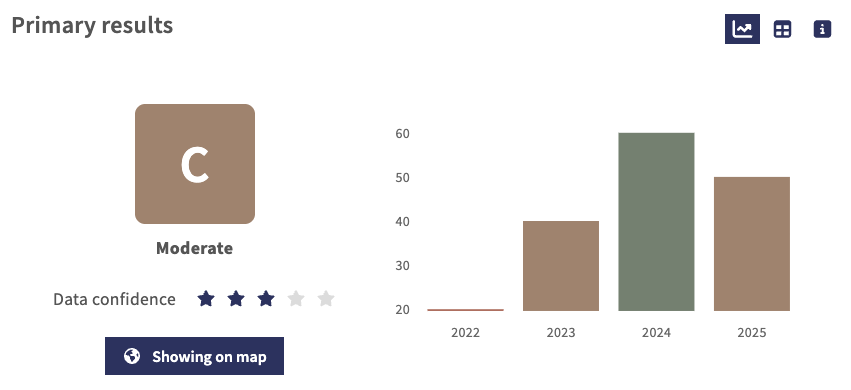
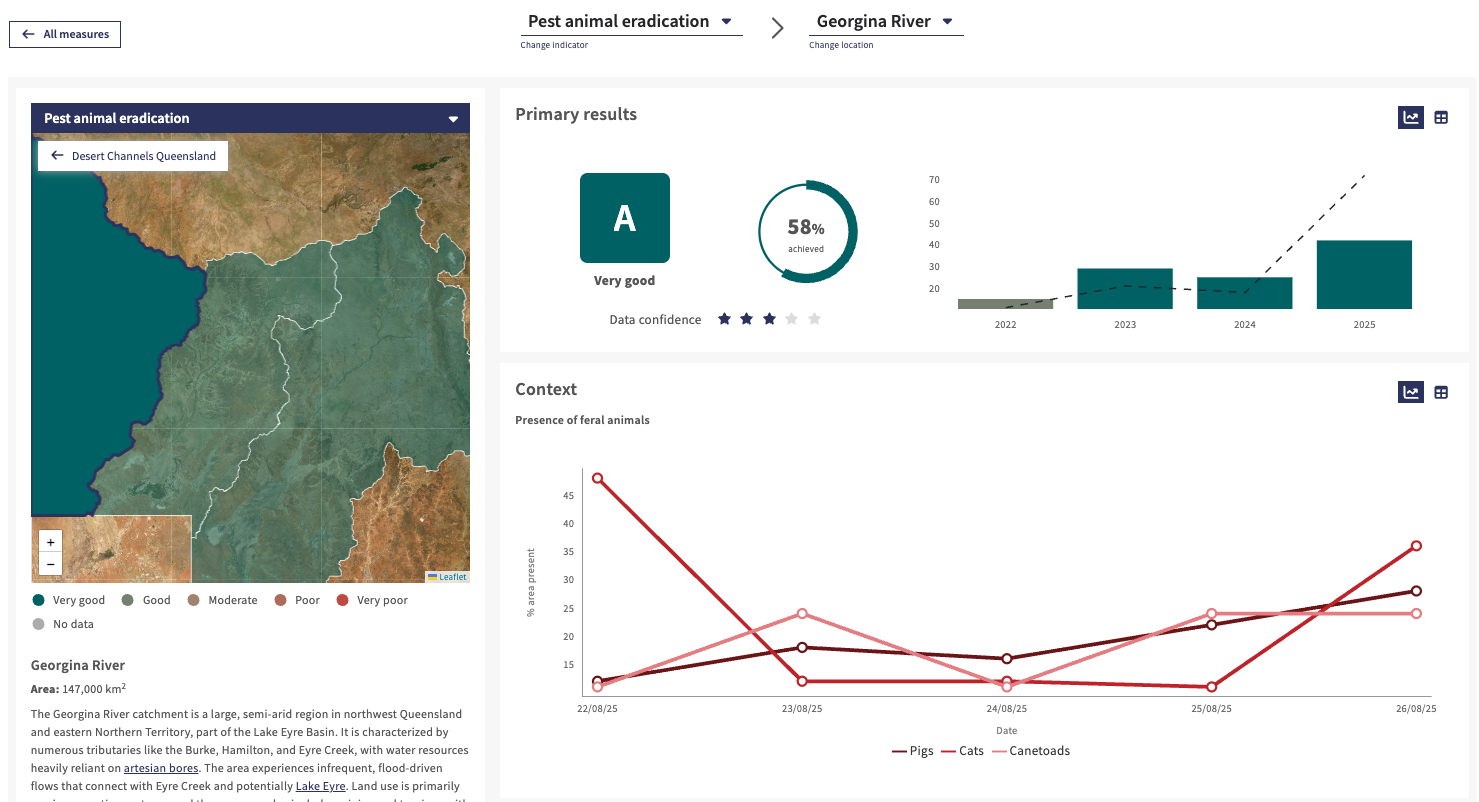
Example of an indicator’s primary result, including a temporal visualisation and data confidence rating.
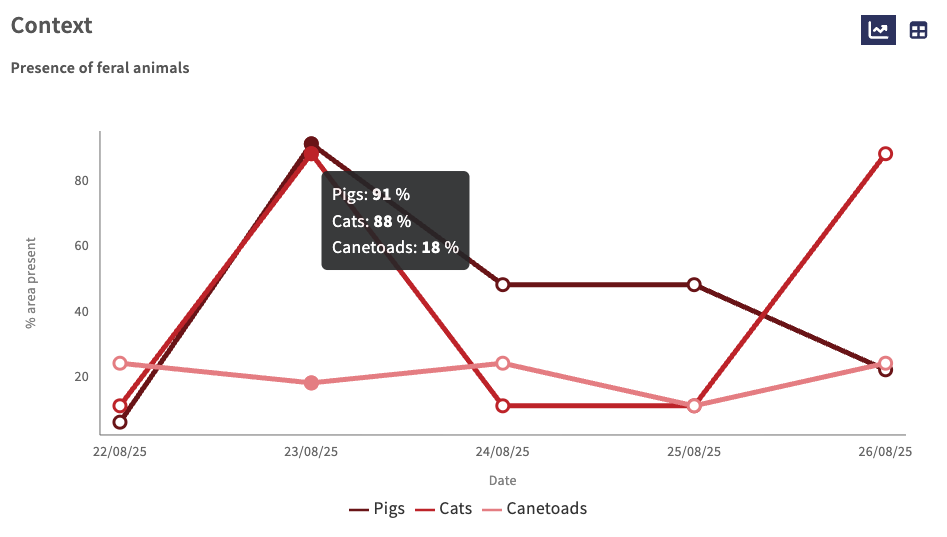
Context data panel displaying a multi-series line chart
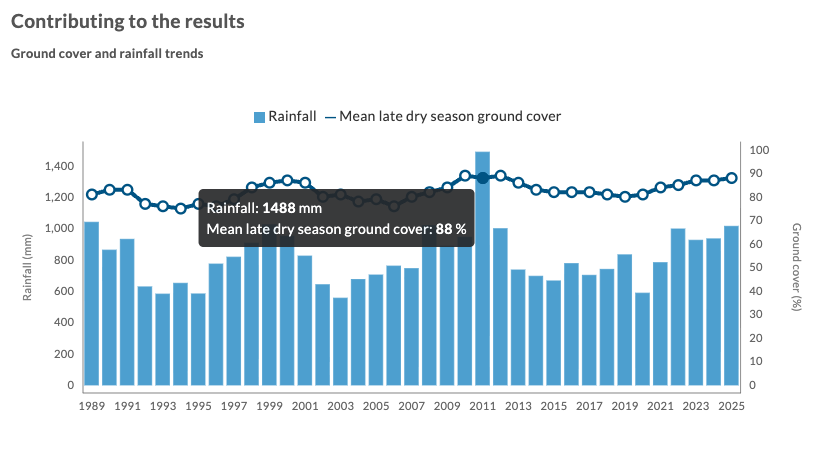
Context data panel displaying a multi-series combo chart

Supporting content panel displaying headline figure and boxed link widgets.
Each indicator-location combination is represented as a page, which forms the site structure. Pages are created automatically when locations and indicators have been defined. But indicators can be turned off for certain locations where they are not relevant.
The structure of the interactive reports is deliberately designed to initially show high-level results and to allow drilling down for more detail. At the highest level, all indicators are displayed for the highest level location e.g. all indicators, region-wide. You can then drill down through an indicator for that highest level location e.g. down to sub-indicator region-wide. You can also drill down by location to see all indicators at a sub-location or to the details of a specific indicator at a sub-location.
Reports can be structured around two reporting period types:
This type allows for a single report that is always current, but can include multi-year reporting for individual indicators. It is ideal for a dashboard-type experience, where information is updated regularly rather than released periodically (e.g. one big release per year), and where older information does not need to be preserved.
This type provides snapshots through time (e.g. annual/biennial) that are accessible via a date selector, which allows you to flick between reporting years. This type of structure is ideal for preserving non-data reporting, like interpretation, for a specific period. Adding a new instance duplicates the last one, so you only need to update things that have changed, like data and results interpretation. Within a single reporting instance, you can still report historical data.
Subscribe to our mailing list for all the latest news and developments about Natural Capital Suite.
Truii acknowledges the Traditional Owners of Country throughout Australia. We pay our respects to Elders past, present and emerging.


